
• Oracle SQL Developer and SIGBUS, Non-existent physical address

    For quite some time I could not find the reason behind SQL Developer not opening the java folder. As soon as trying to open it it went crazy. Connections would be reconnected on each mouse click in the tree -> tables, packages, procedures ….

    Sql developer java folder

    Finally I noticed in alert log an error started popping up. It reads like this:

    xxx(3):Exception [type: SIGBUS, Non-existent physical address] [ADDR:0x401FC8000000] [PC:0x10F340C, ksm_mga_heap_alloc_seg()+140] [flags: 0x0, count: 1]
    Errors in file /u01/app/oracle/diag/rdbms/xxx1/xxx/trace/xxx_ora_189996.trc (incident=22001) (PDBNAME=xxx):
    ORA-07445: exception encountered: core dump [ksm_mga_heap_alloc_seg()+140] [SIGBUS] [ADDR:0x401FC8000000] [PC:0x10F340C] [Non-existent physical address] []
    PCHDUAT(3):Use ADRCI or Support Workbench to package the incident.
    See Note 411.1 at My Oracle Support for error and packaging details.

    Searching the internet did not reveal much information except something similar. The proposed solution was to increase the /dev/shm space to at lease the size larger than the value of SGA_MAX_SIZE, if set, or should be set to be at least MEMORY_TARGET or MEMORY_MAX_TARGET, whichever is larger.

    A simple command for temporary increase provided immediate resolution without even a database bounce.
    In my case the memory was set to 11GB so 12GB shm would suffice:

    mount -o remount,size=12G /dev/shm

    This error was present from version of oracle database 11 onwards and it was still happening on version 19.11.

    Related oracle article: https://support.oracle.com/epmos/faces/DocumentDisplay?_afrLoop=201141489940754&id=1585946.1&_afrWindowMode=0&_adf.ctrl-state=pvop9ect3_102 (title: ORA-07445: [KCBHFHO()+49] [SIGBUS] [NON-EXISTENT PHYSICAL ADDRESS] (Doc ID 1585946.1))

  • Windows 10 updates stuck

    Windows 10 update system sometimes doesn’t work as expected, windows update get stuck downloading or checking for updates. There are multiple reasons that cause windows Update to stuck downloading or fail to install. This solutions you may help you fix and install windows update successfully.

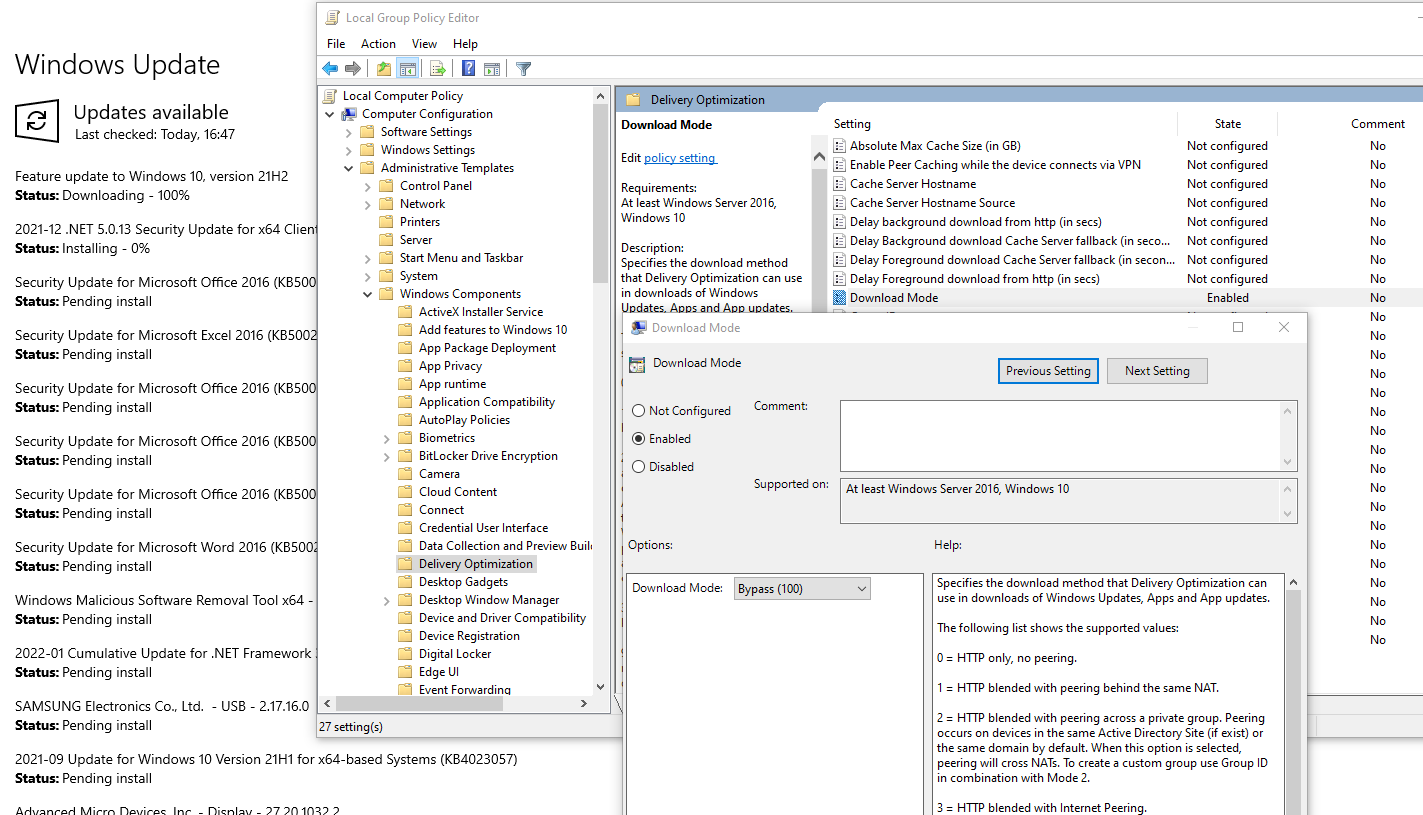
    After days of desperate search I found the same solution over and over again. Only when I found the update logs I could identify what the real problem was. The Download mode setting saved me and windows updates started installing updates again. This setting also made Windows Store work again.

    To check your download mode setting open group policy editor and follow the path:
    Group policy editor -> Local Computer Policy -> Computer Configuration -> Administrative Templates -> Windows Components -> Delivery Optimization -> Download mode -> Set to 100 (Bypass)

    Download mode setting

    The powershell command to extract Windows update logs from .etl files is:
    Get-WindowsUpdateLog

    Log section with error

    Found: DO job {….} hit a transient error in the log file. DO stands for delivery optimization.
    And in the logs you may as well find the issue for your situation

    Other useful steps you can take to help you with windows updates issues:

    1. Run the Windows Update Troubleshooter from Windows Settings > Update & Security > Troubleshoot. 
    2. Rename or delete SoftwareDistribution and Catroot2 folders with following commands in command prompt with elevated privileges:
      net stop wuauserv
      net stop cryptSvc
      net stop bits
      Ren C:\Windows\SoftwareDistribution SoftwareDistribution.old
      Ren C:\Windows\System32\catroot2 Catroot2.old
      net start wuauserv
      net start cryptSvc
      net start bits


      DISM /Online /Cleanup-Image /RestoreHealth
      sfc /scannow

      wsreset.exe

    Connected error codes:
    0x80D03805
    0x8024001E
    0x80248014

  • Jenkins rebuild old build – by git commit

    Problem

    Jenkins is a great tool for automation server, with a huge number of available plugins. As such it is sometimes hard to find the right one. As I navigated across the sea of automation, there was always a concern -> How do we restore a previous build if the current build completes, but the deployed version has a non-expected error.

    Setting up a rebuild scenario in Jenkins brought to life a new dimension issues I was not expecting.

    Solution

    I completed the requirement by using the Rebuild plugin which adds a nice rebuild button to all the old builds. Got to the plugins page and check for Rebuild plugin. Restart Jenkins afterward just so we are sure everything is picked up correctly. The button to rebuild will be present in the old build details in every project. Rebuild will trigger the build with  same configuration as the original build was build with. The issue is that when using a versioning system (like GIT), the configuration stays the same. In my case it was still building the latest commit to the repository as the project was configured to get the latest version.

    The solution is to set a string parameter to your job. I set my parameter default value to develop as if no parameter is specified to I want to download the latest version of the develop branch.

    String parameter:

    • Name: COMMIT
    • Default value: develop

    Branches to build set to value: ${COMMIT}.

    Afterward I can run a Build  with Parameters and input a git revision of a previous build.

    To rebuild using old code check the old job details (revision number):

    then go to the project and press Build with parameters button.

    Paste the git revision in the input field and lunch the build.

    This way Jenkins builds (and deploys if configured) the current application with the requested revision from GIT.

    Hope it help anyone.

  • Oracle 12c RESTRICTED mode, disabled functionality

    oracle databaseToday I learned a lot when our production database went in restricted mode. We had huge issues with our Oracle 12c database that was patched unsuccessfully. After the patch did not finish the database always restarted in RESTRICTED MODE, which means only admin / sys can connect to the database. All of our application could not access the database, which resulted in an all around panic situation. The cause was the half finished patch. The database detected that a patch did not finish correctly and because of that it always started restricted.

    The solution was to clear all data from the unsuccessful patch (I don’t know exactly where) and apply the patch again.

    Info about restricted database

    About it on Oracle page – https://docs.oracle.com/database/121/OSTMG/GUID-74FA4067-04D2-477B-A09C-40150BBCD702.html

    Below are some warnings from Oracle page about this special mode. Active sessions are not disconnected when enabling restricted mode. It is a good idea to start the database directly in restricted mode.

    To place an instance in restricted mode, where only users with administrative privileges can access it, use the SQL statement ALTER SYSTEM with the ENABLE RESTRICTED SESSION clause. After placing an instance in restricted mode, you should consider killing all current user sessions before performing any administrative tasks.

    To lift an instance from restricted mode, use ALTER SYSTEM with the DISABLE RESTRICTED SESSION clause.

    Useful commands

    You can check the status of the database with:

    SELECT logins from v$instance; — If “Allowed” , than the database is normally accessible.

    After that you can  enable or disable restricted session with:

    alter system enable restricted session;
    alter system disable restricted session;

    Granting users permission to access the restricted database with:

    grant restricted session to joshua;

    Disabled functionality

    Interesting thing is I could not find any info of what functionality is  disabled when database is in RESTRICTED MODE. I found on my own skin that the following thing do not work:

    • Scheduler (only if explicitly enabled)
    • APEX ( always asked for XDB username and password when accessing apex web page)
    • DB Links (failing with an awesome error as shown below)  After normal start the DB link was still not functioning. I am not sure if restricted mode disables it.

    DB link error message
    Error message when testing DB link from SQL Developer when the database is in restricted mode


    Hope it helps someone.

    Bye

  • Cntlm gateway mode setup for docker

    In CNTLM we need to allow Gateway mode to allow other computers to connect trough our proxy. We used this in our corporate environment to allow docker images to be pulled from the web as docker does not have a nice way to hange proxies with NTLM authentication.

    We changed cntlm.ini around line 70.

    Uncommented Gateway flag

    # Enable to allow access from other computers
    #
    Gateway yes
    

    And for additional security specify specified who is allowed to connect to our proxy.

    # Useful in Gateway mode to allow/restrict certain IPs
    # Specifiy individual IPs or subnets one rule per line.
    #
    Allow 10.10.10.1
    Allow 127.0.0.1
    Allow 10.0.75.0/24
    Deny 0/0
    

    Be careful as docker for windows (not talking about docker toolbox) is not running under localhost, but its running in its own vhost environment. This means that you must specify the proxy in docker as http://10.10.10.1:3128/ and not use localhost or 127.0.0.1.

    Have a nice day.

  • Fingerprint driver for HP Elitebook 8560p Windows 10 64 bit

    I managed to finally set up my fingerprint sensor on HP Elitebook 8560p with Windows 10 64-bit.

    As HP does not provide drivers for Windows 10 for this model (I dont know why that is because it is still a great notebook in 2016), I luckily searched in google and found out that Asus also had the same problem when upgrading to Windows 10.

    Asus was also good enough to provide a driver for that. I found it on http://www.asus.com/Commercial-Notebooks/ASUSPRO_ESSENTIAL_PU551JD/HelpDesk_Download/ and the description of the driver is as follows:

    Synaptics Fingerprint Driver (For Windows 10 Upgrade)
    To avoid Windows login with fingerprints failing due to compatibility issue after upgrade to Windows 10, please un-install ” Fingerprint Driver” and “ASUS Fingerprint driver and utility”. And, update “Synaptics Fingerprint driver” to 4.5.306.0 or above. Then, you can login Windows 10 with new feature “Windows Hello” by fingerprints.

    I installed the driver and manually select it for the device in Device Manage (Like forcing windows to use it because they didn’t recommend it).

    Here is a fast image tutorial.
    1. Install driver
    2. Go to Device manager and manually select from the list

    fingerprint23. Check device installationfingerprint

    4. Go to Windows Hello to set up fingerprints.fignerprint3Hope it helps anyone.

  • Editing Word 2013 Table of Content

    Table of content
    Table of content for images
    Table of contents is build upon styles that are present in the text. Usually direct modification on a word or two are preserved even if the style for a paragraph changes.

    This phenomena can also be spotted when building table of contents for images or graphs. If your table of contents has some “Graph 1” bold and, lets say, “Graph 2” not bold, but in the text lower they are both bold, then styles kicked in. As you can see in the picture – “Slika 2” has a style of Heading 1 and it appears different from “Slike 1” which has style Caption. You should go to the caption text of “Graph 2”, mark the whole line and remove all styles. (Thus removing Heading 1)

    Then apply the changes you wish to have in the table of contents.

    Refreshing the ToC should pick up your custom formatting.

    ps: You should set up ToC properties when creating them. Afterwards modifications like line spacing or paragraph spacing cannot me made.

  • Oracle: Enable/Disable all constraints in schema at once

    SQL developer 4.1Here are the snippets for enabling and disabling all constraints in an oracle schema. This is useful when you create a new schema and then fill it up with the data from other databases.

    For whatever reason you will need this be careful to only enable primary keys at first, otherwise all foreign key validation will fail.

    Also check my post about updating sequences –

    --
    -- disable all
    --
    
    BEGIN
      FOR c IN
      (SELECT c.owner, c.table_name, c.constraint_name
       FROM user_constraints c, user_tables t
       WHERE c.table_name = t.table_name
       AND c.status = 'ENABLED'
       ORDER BY c.constraint_type DESC)
      LOOP
        dbms_utility.exec_ddl_statement('alter table "' || c.owner || '"."' || c.table_name || '" disable constraint ' || c.constraint_name);
      END LOOP;
    END;
    /
    
    --
    --enable all
    --
    BEGIN
      FOR c IN
      (SELECT c.owner, c.table_name, c.constraint_name
       FROM user_constraints c, user_tables t
       WHERE c.table_name = t.table_name
       AND c.status = 'DISABLED'
       --AND CONSTRAINT_NAME LIKE '%_PK%'   --first you have to enable only primary keys, otherwise foreign keys will not validate
       ORDER BY c.constraint_type)
      LOOP
        dbms_utility.exec_ddl_statement('alter table "' || c.owner || '"."' || c.table_name || '" enable constraint ' || c.constraint_name);
      END LOOP;
    END;
    /
    
    
  • Oracle: Update all sequences for tables for current user

    SQL developer 4.1Below is procedure that updates all table sequences to match the max ID currently in a table. Useful when there is a mismatch of values.

    -- Update all sequences to match actual table values
    DECLARE
    v_max VARCHAR2 (1000);
    BEGIN
    
    FOR rec IN (
    select tabs.table_name table_name,
    seqs.sequence_name seq_name,
    seqs.last_number
    from user_tables tabs
    join user_triggers trigs
    on trigs.table_name = tabs.table_name
    join user_dependencies deps
    on deps.name = trigs.trigger_name
    join user_sequences seqs
    on seqs.sequence_name = deps.referenced_name
    where last_number = 1 --only sequnces that have last number 1
    )
    LOOP
    --Info print
    --dbms_output.put_line(rec.table_name);
    --dbms_output.put_line(rec.seq_name);
    --dbms_output.put_line(rec.last_number);
    
    --reset sequence last number to 0
    EXECUTE IMMEDIATE 'ALTER sequence ' || rec.seq_name || ' INCREMENT BY -' || rec.last_number ;
    EXECUTE IMMEDIATE 'SELECT ' || rec.seq_name || '.NEXTVAL FROM DUAL' ;
    
    --Find highest id in table
    EXECUTE IMMEDIATE 'select max(id)+1 from ' || rec.table_name INTO v_max;
    
    --dbms_output.put_line(v_max);
    
    EXECUTE IMMEDIATE 'ALTER sequence ' || rec.seq_name || ' INCREMENT BY ' || v_max ;
    
    EXECUTE IMMEDIATE 'SELECT ' || rec.seq_name || '.NEXTVAL FROM DUAL' ;
    
    EXECUTE IMMEDIATE 'ALTER sequence ' || rec.seq_name || ' INCREMENT BY 1' ;
    
    END LOOP;
    END;
    /
    
  • Visual studio project configuration file settings priority

    csproj in explorerTHE PROBLEM
    For multiple versions (Dev, Test, Prod) of a single ClickOnce application one has to name assemblies differently. In this way you can have all three versions on the same computer. This can be easily achieved by using configuration in Visual Studio. The problem I had was that no matter what the assembly name I specified in the configuration, it would not use it during build.

    SOLUTION
    The problem was hidden on the bottom of the “application.csproj” file. All the properties of each configuration were placed on top of the csproj file and the bottom parameter was always setting like a default value.

     
    .
    .
    .
    <PropertyGroup Condition="'$(Configuration)|$(Platform)' == 'Release|AnyCPU'">
       <OutputPath>bin\Release\</OutputPath>
       <DefineConstants>TRACE</DefineConstants>
       <Optimize>true</Optimize>
       <DebugType>pdbonly</DebugType>
       <PlatformTarget>AnyCPU</PlatformTarget>
       <ErrorReport>prompt</ErrorReport>
       <CodeAnalysisIgnoreBuiltInRules>false</CodeAnalysisIgnoreBuiltInRules>
       <AssemblyName>Application Test</AssemblyName>
       <ProductName>Application Test</ProductName>
       <InstallUrl>https://localhost/install/</InstallUrl>
       <PublishUrl>C:\Deploy\</PublishUrl>
       <UseVSHostingProcess>false</UseVSHostingProcess>
    </PropertyGroup>
    .
    .
    .
    <PropertyGroup>
       <AssemblyName>Application</AssemblyName>
    </PropertyGroup>
    .
    .
    .
    

    Just remove the bottom PropertyGroup and your configuration setting will be applied at build time. Don’t forget to always reload the project when you change the configuration file, as visual studio always reads it only at project load.

    PS: To edit the csproj you must first unload the project. Then you can right click on it and choose edit. (or use a text editor in explorer)