Windows 10 update system sometimes doesn’t work as expected, windows update get stuck downloading or checking for updates. There are multiple reasons that cause windows Update to stuck downloading or fail to install. This solutions you may help you fix and install windows update successfully.
After days of desperate search I found the same solution over and over again. Only when I found the update logs I could identify what the real problem was. The Download mode setting saved me and windows updates started installing updates again. This setting also made Windows Store work again.
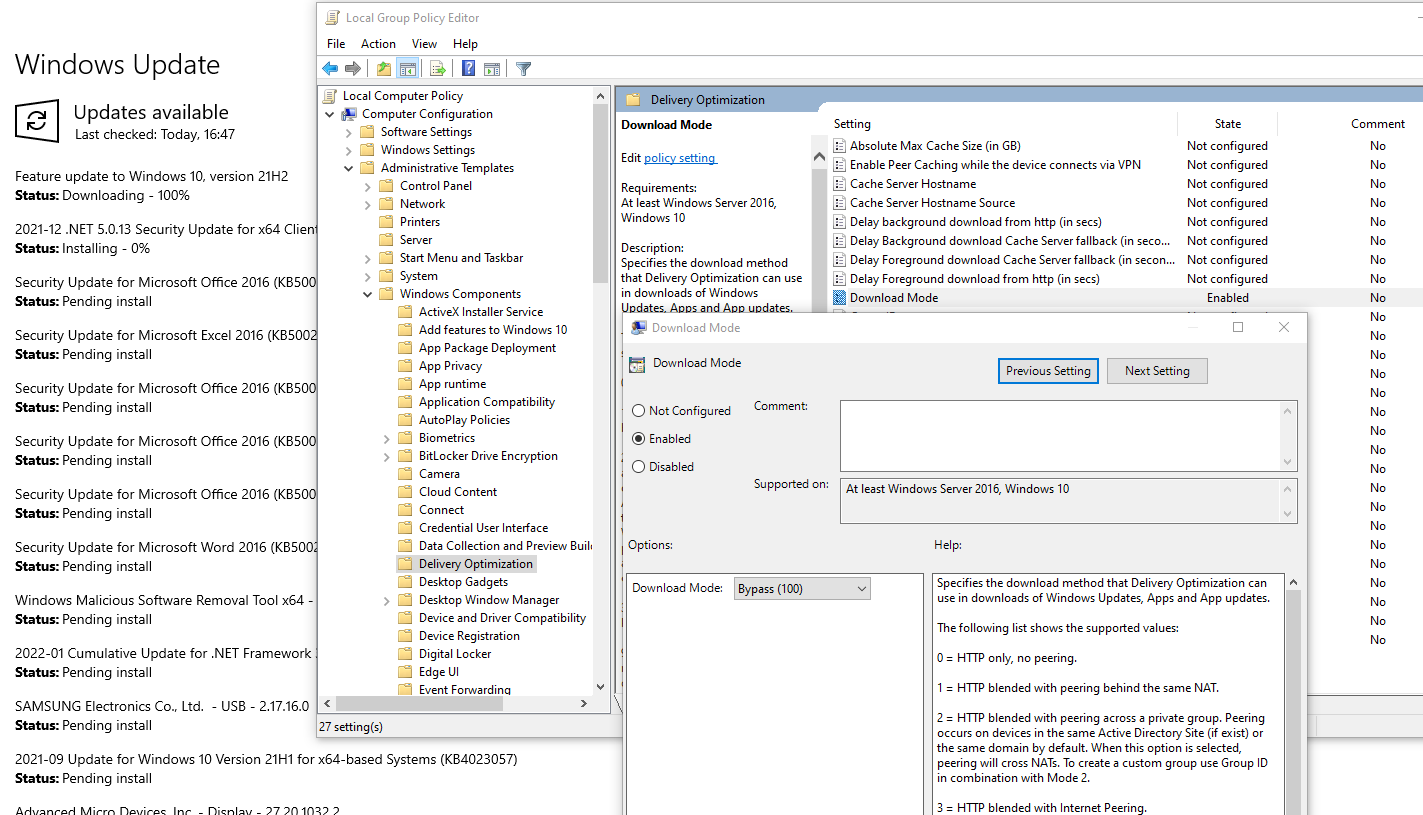
To check your download mode setting open group policy editor and follow the path:Group policy editor -> Local Computer Policy -> Computer Configuration -> Administrative Templates -> Windows Components -> Delivery Optimization -> Download mode -> Set to 100 (Bypass)
The powershell command to extract Windows update logs from .etl files is: Get-WindowsUpdateLog

Found: DO job {….} hit a transient error in the log file. DO stands for delivery optimization.
And in the logs you may as well find the issue for your situation
Other useful steps you can take to help you with windows updates issues:
- Run the Windows Update Troubleshooter from Windows Settings > Update & Security > Troubleshoot.
- Rename or delete SoftwareDistribution and Catroot2 folders with following commands in command prompt with elevated privileges:
net stop wuauserv
net stop cryptSvc
net stop bits
Ren C:\Windows\SoftwareDistribution SoftwareDistribution.old
Ren C:\Windows\System32\catroot2 Catroot2.old
net start wuauserv
net start cryptSvc
net start bits
DISM /Online /Cleanup-Image /RestoreHealth
sfc /scannow
wsreset.exe
Connected error codes:
0x80D03805
0x8024001E
0x80248014


